

Wasted cloud spend, configuration drift, lack of policy enforcement / governance, shadow IT cloud instances: These are all common headaches as organizations scale up their cloud adoption and migration.
Terraform has been transformational for these organizations by bringing a unified provisioning workflow to operational modernization initiatives, but customers still need more tools that help bring more fragmented workflows and resources into Terraform.
This is why we built Terraform search, now generally available in the Terraform 1.14 release, to address the previously mentioned challenges by not only discovering and auditing unmanaged resources, but also importing them into a secure, automated, unified workflow. Terraform search is a new workflow to query your cloud environment and bulk-import resources directly into state.
This post explores the challenges customers face and demonstrates how Terraform search solves them with a practical example.
»Challenges that led to Terraform search
The 2025 HashiCorp Cloud Complexity Report shows that 97% of organizations admit they’re struggling with their cloud infrastructure, while 98% also admit facing associated cost challenges as well. The report also states that 52% of organizations cite the complexity of operating a hybrid/multi-cloud environment to be their biggest challenge. Some of the most common infrastructure lifecycle management challenges we hear about from our customers include:
»Governance of manually created resources (ClickOps)
Many cloud migrations, especially during the early days of public cloud adoption, were done via lift-and-shift. In other words, teams would generally provision resources directly via CLI or, in some cases, through the cloud console itself. These resources bypass any sort of infrastructure as code (IaC) workflows, lack automation, and in some cases even lack version control. This typically results in ungoverned resources, leaving the door open to potential security vulnerabilities and cloud waste.
»Cloud waste
Without centralized visibility or governance, organizations tend to lose track of what is running throughout their cloud estate. These items usually range from old orphaned test environments tied to completed projects, all the way to idle virtual machines and their attached storage that persisted after an application decommissioning or update.
These unused resources can account for a significant portion of cloud spend. We know that in past surveys, as much as 91% of respondents were aware of waste within their cloud spend.
These orphaned resources can also become security risks if left idle with misconfigurations or weak security settings. Forgotten resources like these can be leveraged by malicious actors for long periods of time.
»Configuration drift
Configuration drift refers to when the actual state of infrastructure components diverges from their intended state. When resources are not provisioned or managed via some form of IaC, configuration drift becomes inevitable. This creates several risk factors such as:
Untracked changes that can introduce vulnerabilities and open up attack vectors within your environment.
Outages, failed deployments, and other operational incidents. These become more prevalent due to unexpected configurations or behaviours.
The possibility of compliance failures. Non-compliance risks increase when auditors are not always able to verify that your infrastructure matches desired policy.
»Lack of policy enforcement or automated governance
Without IaC, organizations cannot enforce guardrails or automate compliance checks. Teams can bypass established controls, increasing risk and reducing visibility throughout environments. Regulatory violations also tend to increase when organizations do not have the enforcement in place to ensure internal, or industry compliance standards are met.
These are just some of the most common issues we typically see present within large-scale cloud environments.
»How Terraform search addresses those problems
Terraform search can address these issues listed above. It can be used through the HCP Terraform user interface, your version control system (VCS), or CLI-driven workspaces.
Terraform search works by defining queries through list blocks within your Terraform configuration. These blocks are geared towards searching your environment for existing resources.
The terraform query command is used to generate the configuration containing the required resource and import blocks needed to import the discovered resources.
The desired resources are imported by copying the generated configuration into your main.tf file and executing the terraform apply command as usual.
This workflow saves countless hours of manually searching for resources and running the terraform import command for each individual resource. It also unlocks a more repeatable and secure process that is much less error prone.
To understand what using Terraform search looks like in practice, let’s go through an example.
»Example: Importing unmanaged Amazon EC2 instances using Terraform search
This example will show you how to search for, and import, Amazon EC2 instances that are present and managed within the AWS console but not managed or present within Terraform state. This fragmented, ad hoc management is an anti-pattern. We want all of our resources present and managed in Terraform.
Using HCP Terraform, within a workspace using Terraform 1.14 or greater, you now see a new Search & Import option visible within the left navigation pane (refer to the image below). This example will be a CLI-driven run in order to showcase the required HCL needed for this import exercise.
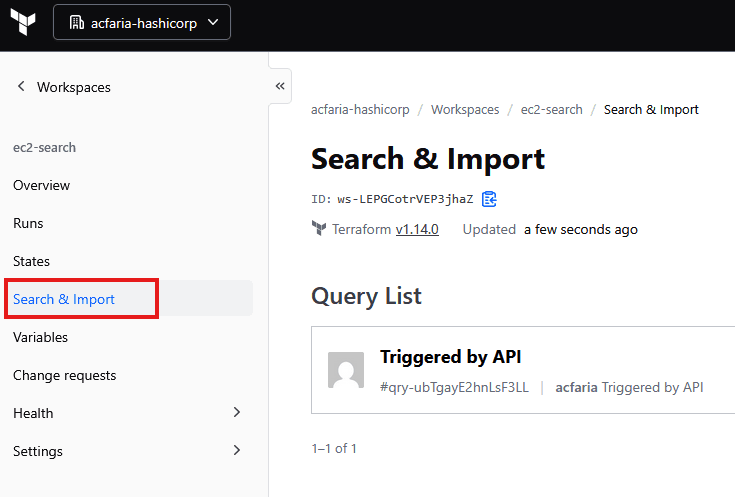
Search & Import functionally within an HCP Terraform workspace
In the Terraform configuration tied to this example workspace, a query is defined by using list blocks (example shown below) within a search.tfquery.hcl file. The list block contains arguments such as which provider configuration Terraform should use to perform the query, and a config block that defines provider-specific arguments to build the query itself.
search.tfquery.hcl
list "aws_instance" "unmanaged" {
  provider = aws

  config {
    region = "us-east-2"

    filter {
      name   = "tag:ManagedBy"
      values = ["unmanaged"]
    }

    filter {
      name   = "instance-state-name"
      values = ["running"]
    }
  }
}
This example tells Terraform to search for all running EC2 instances within the AWS us-east-2 region that contain a ManagedBy tag value of unmanaged.
Note: Queries can also be customized for other use cases. For additional query configuration values and more information on queries in general, please refer to the Import resources in bulk page on the HashiCorp Developer site.
With the Terraform query defined, you can now execute the terraform query command:
$ terraform query
Running query in HCP Terraform. Output will stream here. Pressing Ctrl-C
will stop streaming the logs, but will not stop the query running remotely.

Preparing the remote query run...

To view this query run in a browser, visit:
https://app.terraform.io/app/acfaria-hashicorp/ec2-search/search/qry-ubTgayE2hnLsF3LL

Waiting for the query run to start...

Terraform 1.14
on linux_amd64
Initializing plugins and modules...
list.aws_instance.unmanaged   account_id=008971679752,id=i-011f5cd5c03cc2560,region=us-east-2   unmanaged-instance-6
list.aws_instance.unmanaged   account_id=008971679752,id=i-0ca0957c269603542,region=us-east-2   unmanaged-instance-2
list.aws_instance.unmanaged   account_id=008971679752,id=i-0553ba06da0a4ae8f,region=us-east-2   unmanaged-instance-4
list.aws_instance.unmanaged   account_id=008971679752,id=i-0f10ea0f0d579ed3d,region=us-east-2   unmanaged-instance-3
list.aws_instance.unmanaged   account_id=008971679752,id=i-0ebdff0b154a659df,region=us-east-2   unmanaged-instance-1
list.aws_instance.unmanaged   account_id=008971679752,id=i-02c648ca8076d113f,region=us-east-2   unmanaged-instance-5
The results of the Terraform search query are displayed within the CLI and the HCP Terraform UI:
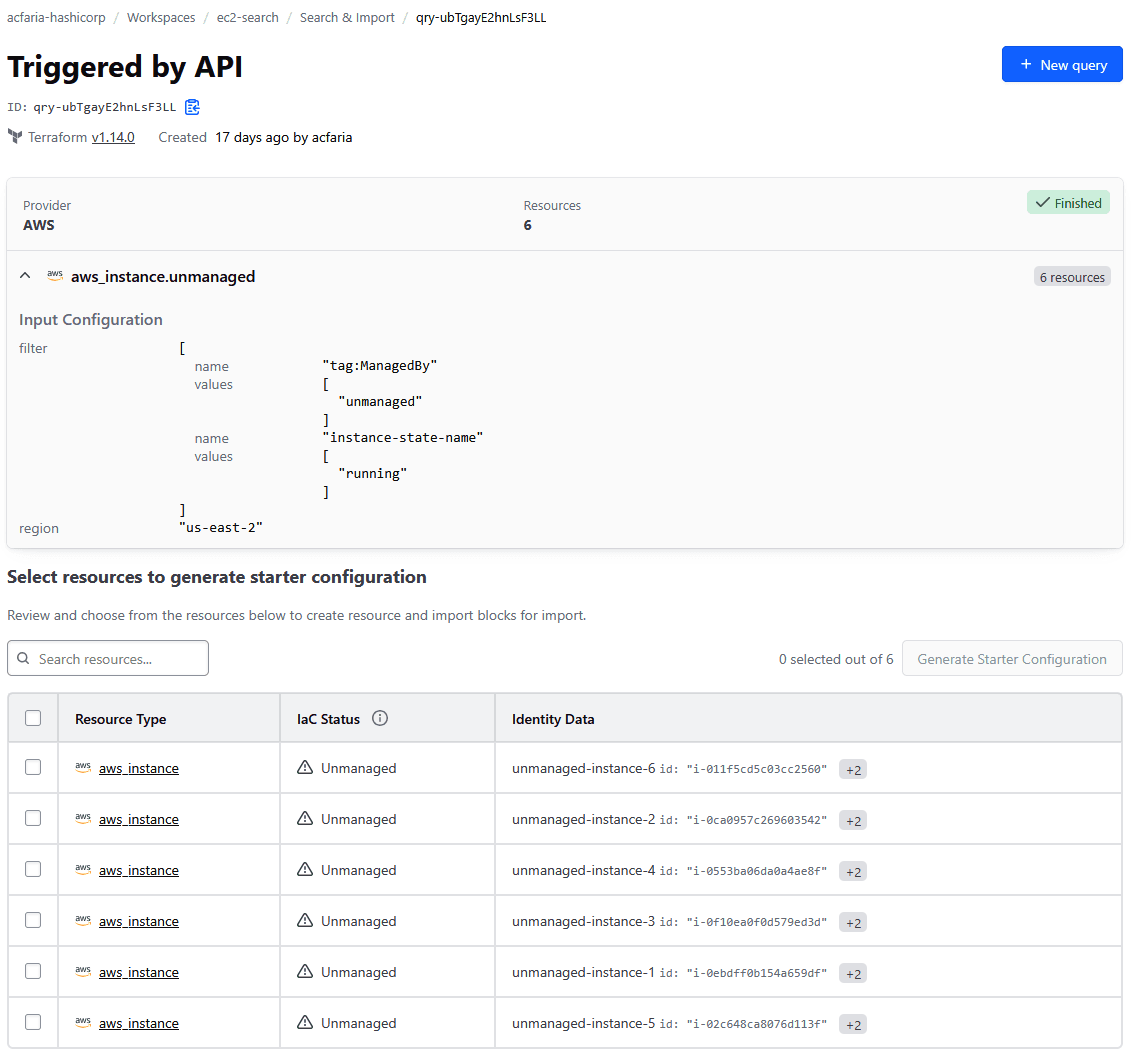
HCP Terraform UI displaying search query and results
The HCP Terraform UI also displays the input configuration of the query as well.
You can now review details for each unmanaged resource and generate a starter configuration by selecting which resources you want to import into your Terraform state, and clicking on the Generate Starter Configuration button:
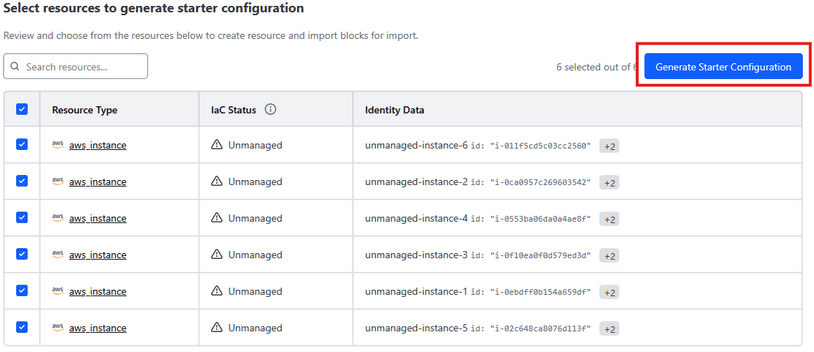
Selected unmanaged resources to be imported
The required Terraform import and resource blocks have now been generated within the HCP Terraform UI (shown below). Review the generated HCL code, then import the unmanaged resources into Terraform state.
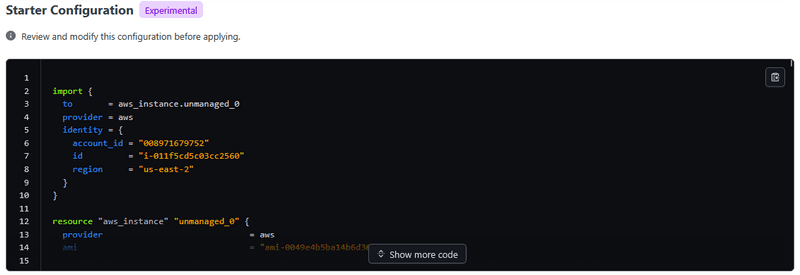
Generated starter configuration within the HCP Terraform UI
After copying the starter configuration output into the main.tf file of your workspace and making modifications as necessary (removing conflicting resource arguments, changing resource tag values, etc.) you can now run a terraform apply command to import the unmanaged resources into the Terraform state.
Note: For certain resources with complex schemas, Terraform may not be able to construct a valid configuration from those values. Modifications to the default starter configuration will have to be made before being able to import resources. For more information, please refer to the limitations section of the Import existing resources page on the HashiCorp developer site.
$ terraform apply
Running apply in HCP Terraform. Output will stream here. Pressing Ctrl-C
will cancel the remote apply if it's still pending. If the apply started it
will stop streaming the logs, but will not stop the apply running remotely.

Preparing the remote apply...

To view this run in a browser, visit:
https://app.terraform.io/app/acfaria-hashicorp/ec2-search/runs/run-ULkrfr9NQNNEjgAw

Waiting for the plan to start...

Terraform 1.14
on linux_amd64
Initializing plugins and modules...
aws_instance.unmanaged_4: Refreshing state... [id=i-0ebdff0b154a659df]
aws_instance.unmanaged_5: Refreshing state... [id=i-02c648ca8076d113f]
aws_instance.unmanaged_2: Refreshing state... [id=i-0553ba06da0a4ae8f]
aws_instance.unmanaged_3: Refreshing state... [id=i-0f10ea0f0d579ed3d]
aws_instance.unmanaged_1: Refreshing state... [id=i-0ca0957c269603542]
aws_instance.unmanaged_0: Refreshing state... [id=i-011f5cd5c03cc2560]

Terraform used the selected providers to generate the following execution plan. Resource actions are indicated with the following symbols:
  ~ update in-place

Terraform will perform the following actions:

  # aws_instance.unmanaged_0 will be updated in-place
  # (will be imported first)
 …

Plan: 6 to import, 0 to add, 6 to change, 0 to destroy.
The resources are immediately imported into both the CLI…
aws_instance.unmanaged_5: Modifying... [id=i-02c648ca8076d113f]
aws_instance.unmanaged_1: Modifying... [id=i-0ca0957c269603542]
aws_instance.unmanaged_0: Modifying... [id=i-011f5cd5c03cc2560]
aws_instance.unmanaged_4: Modifying... [id=i-0ebdff0b154a659df]
aws_instance.unmanaged_3: Modifying... [id=i-0f10ea0f0d579ed3d]
aws_instance.unmanaged_2: Modifying... [id=i-0553ba06da0a4ae8f]
aws_instance.unmanaged_0: Modifications complete after 1s [id=i-011f5cd5c03cc2560]
aws_instance.unmanaged_1: Modifications complete after 1s [id=i-0ca0957c269603542]
aws_instance.unmanaged_2: Modifications complete after 1s [id=i-0553ba06da0a4ae8f]
aws_instance.unmanaged_5: Modifications complete after 1s [id=i-02c648ca8076d113f]
aws_instance.unmanaged_3: Modifications complete after 1s [id=i-0f10ea0f0d579ed3d]
aws_instance.unmanaged_4: Modifications complete after 1s [id=i-0ebdff0b154a659df]


Apply complete! Resources: 6 imported, 0 added, 6 changed, 0 destroyed.
...and the HCP Terraform UI:
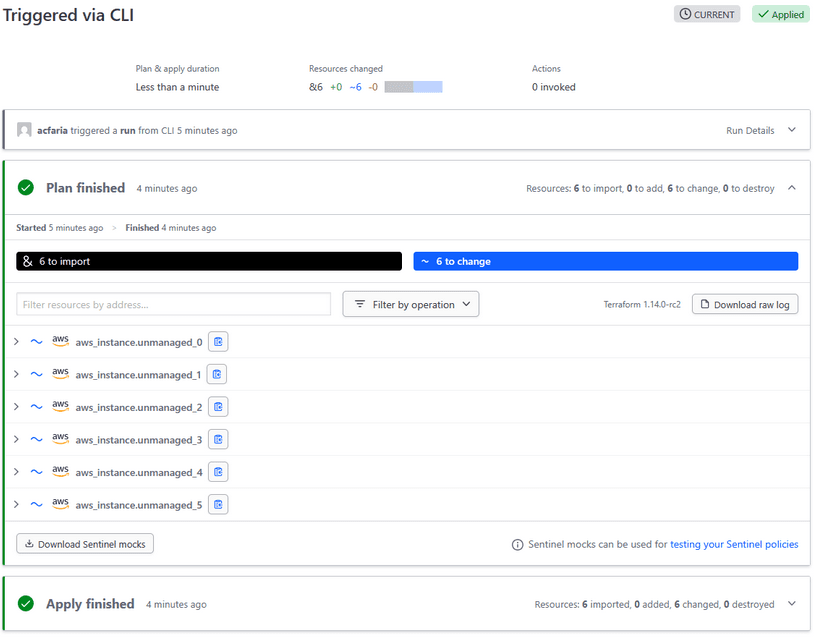
You can also confirm within the AWS console that the changes specified during the import process are reflected: (change the ManagedBy tag value to terraform, and change the instance names to managed-instance-#).
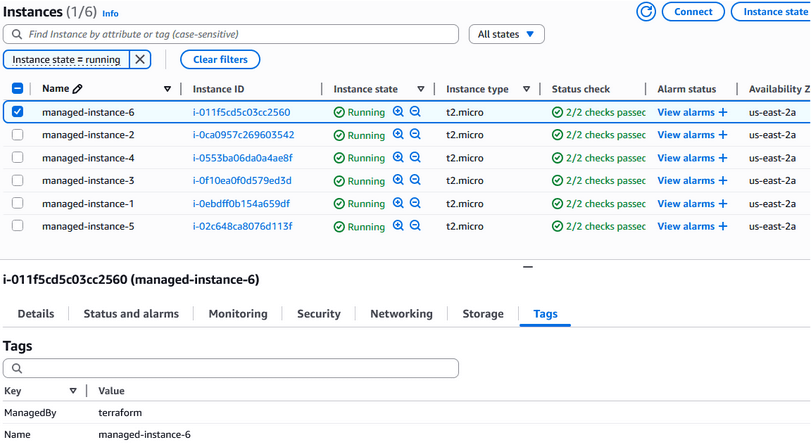
AWS Console displaying the changes made to the imported resources
»Using Terraform MCP server to generate search config
An interesting use case to mention when discussing Terraform search is leveraging the Terraform MCP server to help developers write more accurate and relevant Terraform configurations that suit their organizational needs.
With the latest Terraform release, users will be able to generate Terraform search configurations by simply prompting their favorite MCP-supporting generative AI tool with something like:
“Can you help me import and manage unmapped 'aws_instance' resources with the tag 'unmanaged' using Terraform search while also using X module(s) within my organization’s HCP Terraform private registry?”
This allows unmanaged resources to be imported into Terraform while also ensuring your organizational best practices and patterns are followed through approved module usage.
»Cleanup
If you have been following along by importing and deploying your own test resources, don’t forget to run the terraform destroy command in order to clean up your environment and not incur any unwanted costs.
»Conclusion
This blog post demonstrates how Terraform search can help reduce cloud waste, increase security, and help govern resources across your cloud estate by bulk importing previously unmanaged resources into your Terraform state. This provides visibility and governance for your cloud environment in a centralized manner.
Please note that, as of the writing of this blog post, Terraform search currently supports only a select group of resources within the AWS Terraform provider. Additional provider and resource support will be made available throughout later releases.
To learn more about Terraform, visit the HashiCorp Developer site, where you can find more information regarding best practices, integrations, and reference architectures.