

»Overview
This post updates the earlier approach to managing SSH access with HashiCorp Vault. It also introduces HashiCorp Boundary integration with HashiCorp Vault for passwordless access using just-in-time SSH credentials.
As enterprises accelerate their digital strategies, hybrid and multi-cloud architectures have become the norm. This requires a fundamental shift in how infrastructure is provisioned and managed. When managing secure administrative access to Unix-like servers, SSH remains the standard connectivity method. However, it comes with challenges and risks, especially around key management.
The common reaction to growing key management risks is to search for “SSH key management tools” and review industry reports. But implementing products from this category often treats just a symptom of a bigger challenge: secrets management. In this post, we’ll show you an updated SSH access architecture that simplifies SSH access using a scalable, secure, and consistent experience both on-premises and in public clouds.
What’s new in this update:
Vault 1.13+ changes: The dynamic SSH keys feature has been removed. This guide focuses on the recommended signed SSH certificates approach.
Vault + Boundary integration: New section covering just-in-time credential injection for seamless, passwordless SSH access.
Updated best practices: Refined configurations for modern Vault deployments.
Who this is for: This blog is designed for systems administrators, DevOps engineers, platform engineers, and security teams that want to implement secure, scalable SSH access management. The architecture works across any cloud provider and in on-premises environments.
What we’ll cover:
Risks with SSH key-based authentication
SSH certificate authentication with Vault
Architecture and workflow design
Step-by-step Vault and host configurations
Client workflows for SSH access
New: Vault + Boundary integration for JIT SSH credentials
Time to complete: 45-60 minutes
»Prerequisites
Before starting this tutorial, you’ll need:
To have the HashiCorp Vault running and unsealed. It is possible to test these configurations locally by running Vault in dev mode. For Vault installation instructions, read the getting started with Vault guide.
Access to Linux hosts where you want to enable certificate-based SSH
Vault CLI installed
Basic familiarity with SSH concepts
»Important: Changes since Vault 1.13
Before diving in, note that the Vault SSH secrets engine has evolved since the original blog post.

Changes since Vault 1.13
The SSH certificate approach described in this guide remains the recommended best practice for managing SSH access at scale.
»Risks with SSH key-based authentication
Let’s review the limitations of traditional SSH key-based authentication:
Risk of private key compromise: Users may mishandle private keys, intentionally or unintentionally exposing them to other users or placing them in insecure locations.
Key rotation complexity: Revoking private keys is a complex operation. How do you ensure all copies of the private key are accounted for? What happens when administrators who have made copies leave the company?
Risk of unauthorized access: Over time, large collections of keys are created and implemented across multiple systems. Not having an inventory that tracks the usage of these keys, their relationships, what systems they access, and their usage patterns raises the risks of unauthorized access.
Scalability and complexity: Managing keys across multiple systems and cloud environments consistently is a complex operation. Different architectures are introduced depending on which cloud environment the hosts are deployed to. The likelihood of incidents due to SSH key mismanagement is growing, and so is the level of harm these incidents can cause. When organizations search for “SSH key management tools” looking for answers, the results are often expensive and complex solutions that weren’t built for the low-trust perimeters of the public cloud. Any service outage in one of these SSH key management tools typically results in no access to any host.
»A better alternative: SSH certificate authentication
It’s imperative to improve the SSH user experience and the security of SSH access to your hosts using a standard architecture that can be deployed in any environment. Many Global 2000 customers are addressing these challenges using HashiCorp Vault combined with SSH certificate authentication.
»How SSH certificates work
SSH certificates function similarly to SSL certificates. They are public keys signed by a trusted entity called the certificate authority (CA). Key benefits include:
SSH certificates are signed with a valid time and automatically expire. Once expired, they can no longer be used to connect to target hosts.
Valid SSH certificates can only be signed by the trusted CA’s private key.
You can embed instructions during signing, such as disabling port forwarding or specifying usernames the certificate is valid for.
»Architecture requirements
This architecture achieves the following outcomes:
Enable and enforce identity-based security, where users and applications must authenticate first before receiving SSH access.
Enable role-based access control (RBAC) for SSH access using Vault policies.
Provide short-lived SSH credentials that automatically expire.
Simplify SSH workflows and key management.
Work consistently in any environment: private, hybrid, and multi-cloud.
»SSH certificate authority (CA) - HashiCorp Vault
HashiCorp Vault is a secrets management solution that programmatically brokers access to systems for both humans and machines. It can provide just-in-time secrets such as database credentials, PKI certificates, cloud IAM credentials, and many others.
In this use case, Vault will use its SSH secrets engine, allowing it to function as our SSH CA. It also provides granular access controls to SSH certificate parameters and signing, which is enforced by Vault policies.
»The workflow outline
The architecture for SSH certificate authentication with HashiCorp Vault looks like this:
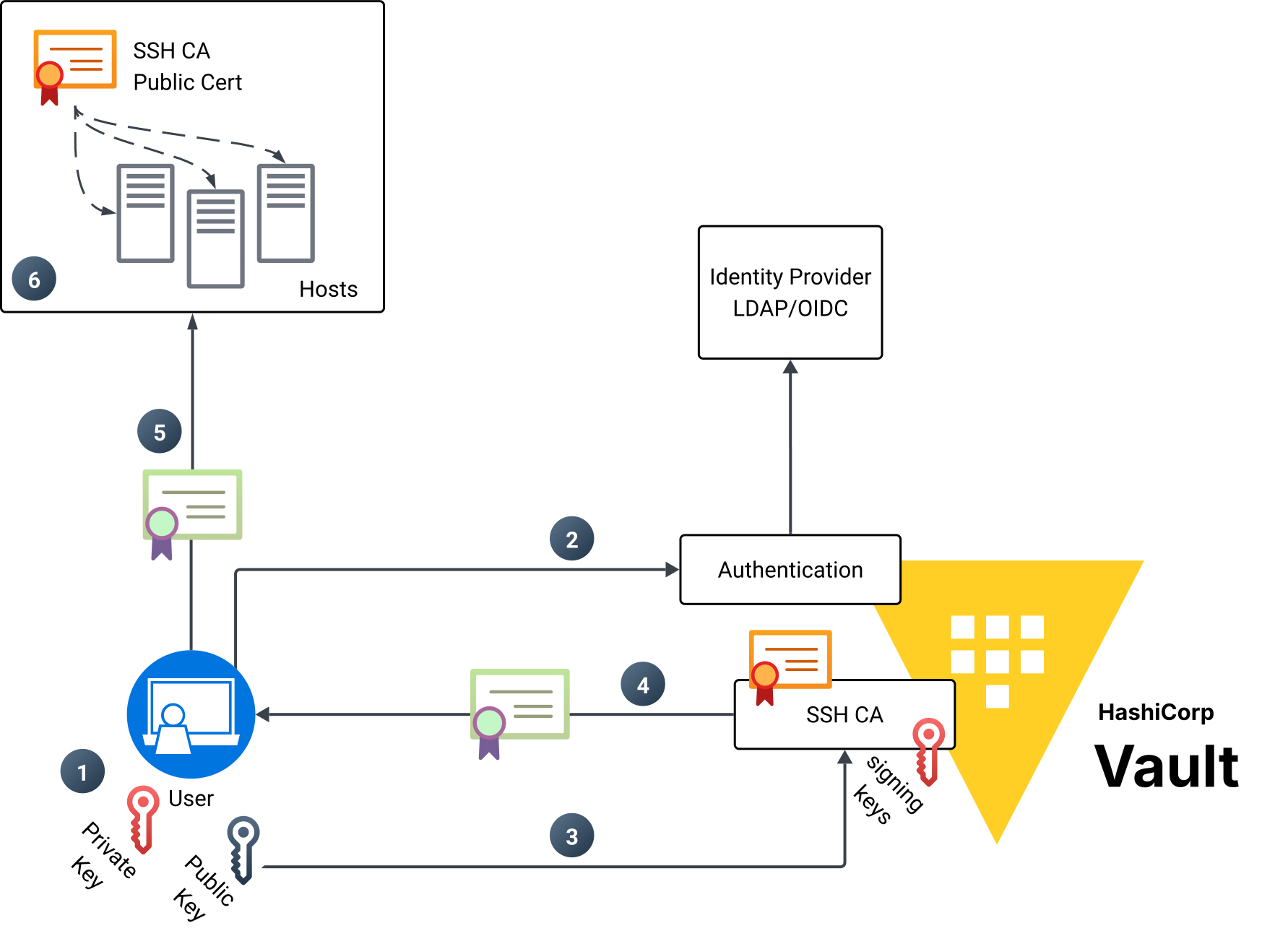
SSH certificate authentication workflow with HashiCorp Vault
The workflow steps are:
The user creates a personal SSH key pair.
The user authenticates to Vault with their identity provider (IDP) credentials.
Once authenticated, the user sends their SSH public key to Vault for signing.
Vault signs the user’s SSH public key and returns a signed SSH certificate to the user.
The user initiates SSH connection to the target host using the signed SSH certificate.
The ost verifies the client SSH certificate is signed by the trusted SSH CA and allows connection.
The Vault SSH secrets engine can contain multiple roles, where each role contains parameters used during key signing. This allows different SSH certificates to be signed with different parameters and principals depending on the Vault role configuration. Using Vault policies provides further control over who can access these SSH CA roles.
»User requirements
The following user access will be configured within Vault:
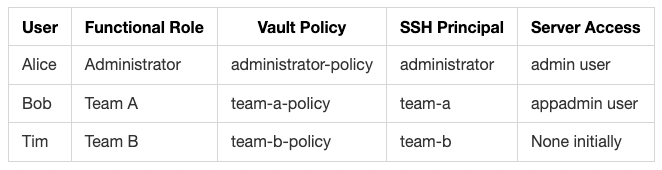
Users and roles
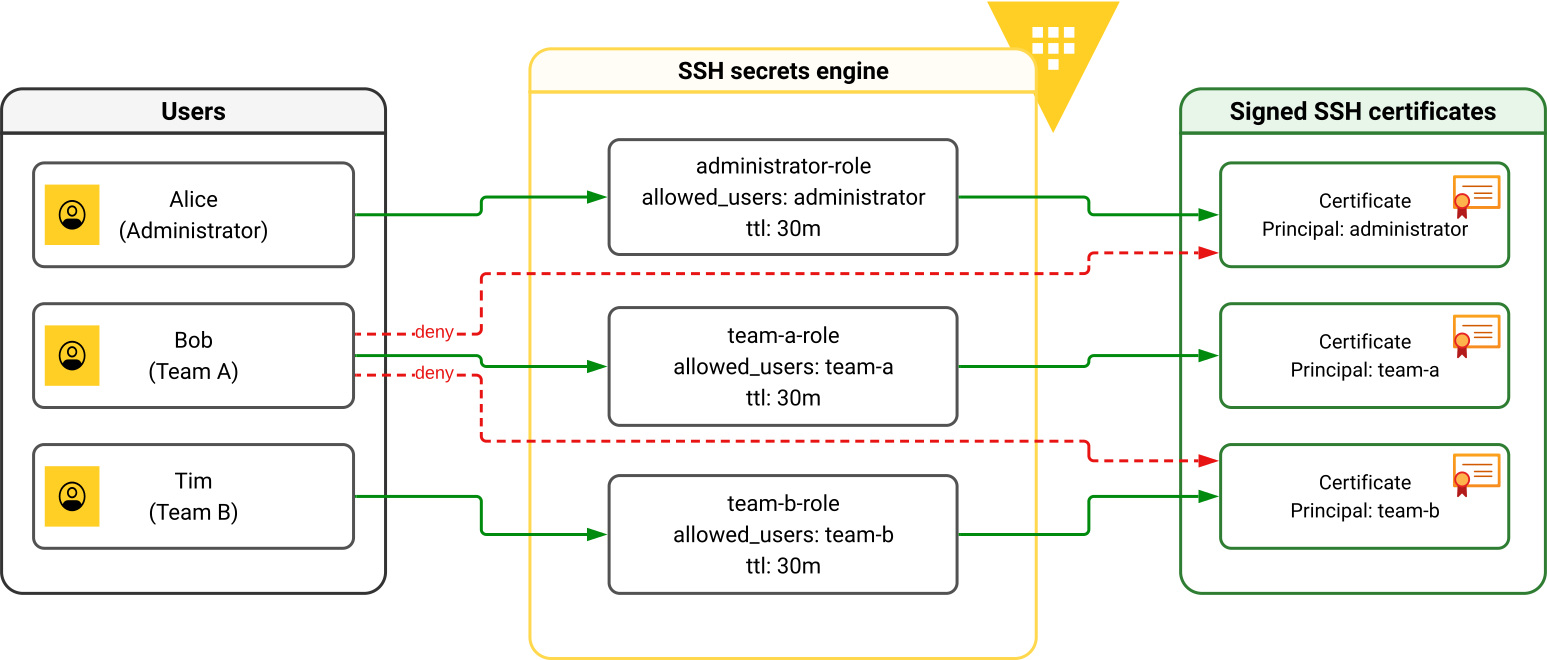
User permissions mapping and access levels representation
Once a user successfully authenticates to Vault, a Vault token is dynamically generated with attached policies that dictate which SSH roles the user can access for certificate signing. For example, Bob’s team-a-policy only grants access to ssh-client-signer/sign/team-a-role, so even if Bob attempts to sign a certificate with the administrator principal, Vault will deny the request. This policy-based access control ensures users can only obtain certificates for their authorized principals.
»Vault configurations
The following steps will be used to configure Vault. For all the configurations we’ll use the Vault CLI.
»Step 1: Enable authentication method
For simplicity, we’ll use the UserPass authentication method. Vault will act as your identity broker, giving you the ability to leverage many other authentication methods that Vault supports such as LDAP or OIDC authentication. Here is an example of how to set up OIDC authentication with Azure AD.
Mount the UserPass authentication method, create users, and attach policies. Let’s set up three Vault accounts to represent the users that require SSH access to hosts. The Vault policies will be set up at a later stage.
# Enable userpass authentication
vault auth enable userpass

# Create users (policies will be attached later)
vault write auth/userpass/users/alice password="passw0rd" policies="administrator-policy"
vault write auth/userpass/users/bob password="passw0rd" policies="team-a-policy"
vault write auth/userpass/users/tim password="passw0rd" policies="team-b-policy"
For production deployments, consider using OIDC authentication with your identity provider.
»Step 2: Mount SSH secret engine and generate SSH CA key pair
# Enable the SSH secrets engine at path "ssh-client-signer".
# The name "ssh-client-signer" is not special - it can be any name
vault secrets enable -path=ssh-client-signer ssh

# Generate the SSH CA signing key pair
vault write ssh-client-signer/config/ca generate_signing_key=true
You’ll see output showing the SSH CA public key:
Key           Value
---           -----
public_key    ssh-rsa AAAAB3NzaC1yc2EAAAADAQABAAACAQDthG9+wjEvCgqBVlBpifXK...
Save this public key - you’ll need it for configuring the target hosts.
If you already have a keypair, specify the public and private key parts as part of the payload:
vault write ssh-client-signer/config/ca \
    private_key="..." \
    public_key="..."
Regardless of whether it is generated or uploaded, the client signer public key is accessible via the API at the /public_key endpoint or the CLI.
»Step 3: Create Vault roles for SSH key signing
We will create Vault roles to sign and issue SSH certificates with specific configurations based on users’ functional roles.
Three Vault SSH roles will be configured for signing SSH client keys, where each role will sign for a specific SSH principal.
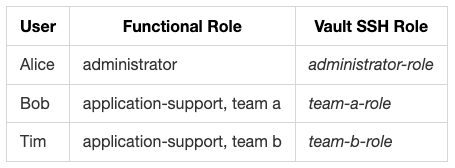
Vault SSH Roles
A few important notes regarding Vault SSH role configurations:
allowed_users: The list of principals this role will sign for. Requests for principals not in this list will fail.ttl: This is the certificate expiry time. Set to 30 minutes in this example. Users must re-authenticate and request new certificates after expiry.
vault write ssh-client-signer/roles/administrator-role -<
{
  "allow_user_certificates": true,
  "allowed_users": "administrator",
  "allowed_extensions": "",
  "default_extensions": {
      "permit-pty": ""
    },
  "key_type": "ca",
  "default_user": "administrator",
  "ttl": "30m0s"
}
EOH
team-a-role:
vault write ssh-client-signer/roles/team-a-role -<
{
  "allow_user_certificates": true,
  "allowed_users": "team-a",
  "allowed_extensions": "",
  "default_extensions": {
      "permit-pty": ""
    },
  "key_type": "ca",
  "default_user": "team-a",
  "ttl": "30m0s"
}
EOH
team-b-role:
vault write ssh-client-signer/roles/team-b-role -<
{
  "allow_user_certificates": true,
  "allowed_users": "team-b",
  "allowed_extensions": "",
  "default_extensions": {
      "permit-pty": ""
    },
  "key_type": "ca",
  "default_user": "team-b",
  "ttl": "30m0s"
}
EOH
»Step 4: Create Vault policies
Create policies that restrict each user’s access to their authorized Vault SSH role.
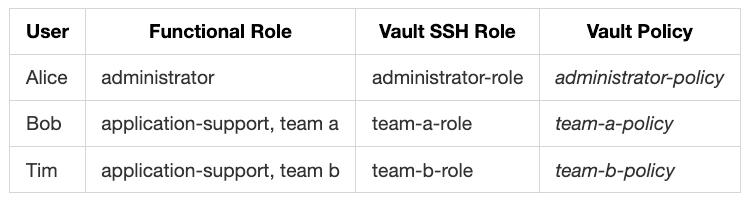
These policies enforce least privilege access to SSH certificate signing.
Alice, as an administrator, is granted permission to sign her SSH public key using administrator-role, which issues certificates with the administrator principal. However, her policy does not grant access to team-a-role or team-b-role, so she cannot obtain certificates for those principals. Vault applies an implicit deny to any path not explicitly permitted in a policy, ensuring users can only access their authorized SSH roles.
administrator-policy:
vault policy write administrator-policy - << EOF
# List available SSH roles
path "ssh-client-signer/roles/*" {
  capabilities = ["list"]
}

# Allow access to SSH role
path "ssh-client-signer/sign/administrator-role" {
  capabilities = ["create","update"]
}
EOF
team-a-policy:
vault policy write team-a-policy - << EOF
# List available SSH roles
path "ssh-client-signer/roles/*" {
  capabilities = ["list"]
}

# Allow access to SSH role
path "ssh-client-signer/sign/team-a-role" {
  capabilities = ["create","update"]
}
EOF
team-b-policy:
vault policy write team-b-policy - << EOF
# List available SSH roles
path "ssh-client-signer/roles/*" {
  capabilities = ["list"]
}

# Allow access to SSH role
path "ssh-client-signer/sign/team-b-role" {
  capabilities = ["create","update"]
}
EOF
»Host configurations
These steps configure the SSH server to trust certificates signed by Vault. You can automate this setup using golden image servers or configuration management tools.

Host configurations
»Step 1: Create local users
sudo useradd -m admin
sudo useradd -m appadmin
»Step 2: Configure trusted SSH CA public key
Create a file containing the SSH CA public key (from Step 2 of Vault configuration):
cd /etc/ssh

sudo echo 'ssh-rsa AAAAB3NzaC1yc2EAAAADAQABAAACAQDthG9+wjEvCgqBVlBpifXK...' > trusted-user-ca-keys.pem
»Step 3: Create AuthorizedPrincipalsFile structure
The AuthorizedPrincipalsFile configurations are important to further control which SSH principals are accepted for certificate authentication. For client authentication to be successful, the principal in the signed SSH certificate must appear in the AuthorizedPrincipalsFile file. For now, let’s set up AuthorizedPrincipalsFile for the administrator and team-a principals only. We will revisit team-b principal later on.
Note: AuthorizedPrincipalsFile is a standard OpenSSH sshd_config directive, not a Vault-specific configuration. It provides fine-grained control over which certificate principals can authenticate as each local user. While HashiCorp’s documentation focuses on TrustedUserCAKeys for CA trust, combining it with AuthorizedPrincipalsFile enables the principal-to-user mapping required for role-based access control in enterprise environments.
cd /etc/ssh
mkdir auth_principals/

# Administrator principal can access admin user
sudo echo 'administrator' > auth_principals/admin

# Team-a principal can access appadmin user
sudo echo 'team-a' > auth_principals/appadmin
»Step 4: Update sshd_config and restart service
Add the following to /etc/ssh/sshd_config:
AuthorizedPrincipalsFile /etc/ssh/auth_principals/%u
ChallengeResponseAuthentication no
PasswordAuthentication no
TrustedUserCAKeys /etc/ssh/trusted-user-ca-keys.pem
The AuthorizedPrincipalsFile is the path containing the files listing the accepted principal names. The %u signifies that the file name will be the username of the Linux user. So in our case, the admin user will contain the administrator principal, the appadmin user will contain the team-a principal.
Don’t forget to restart the SSH service:
sudo service sshd restart
»Client configurations
The user will need to create an SSH key pair. The user’s SSH public key will be signed by the Vault SSH CA and returned to the user. This signed SSH certificate will then be used to connect to the target host.
Let’s go through what that may look like for Alice, who is a systems administrator.
Locate or create SSH key pair
Locate or generate the SSH public key. Usually this is ~/.ssh/id_rsa.pub. Since we are using three users in this blog, we will use specific named keys so we can differentiate. If you do not have an SSH keypair, you can generate one:
ssh-keygen -b 2048 -t rsa -f ~/.ssh/alice-key
ssh-add ~/.ssh/alice-key
»Log in to Vault
Let’s log in to Vault as Alice (administrator role). We will use Vault CLI to authenticate with the UserPass authentication method. Notice the assigned policy:
vault login -method=userpass username=alice
password:

Success! You are now authenticated. The token information displayed below is already stored in the token helper. You do NOT need to run “vault login” again. Future Vault requests will automatically use this token.
Key                  Value
— —                 — — -
token               s.QuJwJTa14g9EvPUPsVx0Lta2
token_accessor      wzxbGGElsJsyLibwVHOyBLjM
token_duration      768h
token_renewable     true
token_policies      [“administrator-policy” “default”]
identity_policies   []
policies            [“administrator-policy” “default”]
token_meta_username alice
»Request signing of user SSH public key
Request Vault to sign Alice’s public key with the administrator principal. This file usually ends in .pub and the contents begin with ssh-rsa ....
The signed certificate that is returned can be stored as alice-signed-cert.pub
vault write -field=signed_key ssh-client-signer/sign/administrator-role \
  public_key=@$HOME/.ssh/alice-key.pub valid_principals=administrator > ~/.ssh/alice-signed-cert.pub
Take note of the valid_principals requested: administrator. If Alice attempts to request any other principal not in the allowed_users list of the Vault SSH CA role, it will fail. This ensures that only authorized lists of SSH principals can be signed for, preventing a user from requesting other principals used by other teams.
In the next code snippet, note the contents of the certificate, specifically the Key ID, validity, and the configured Principals. It is possible to adjust these configurations in the Vault SSH role. For example, you could extend the ttl of the certificate to one hour or another length of time.
ssh-keygen -Lf ~/.ssh/alice-signed-cert.pub
alice-signed-cert.pub:
    Type: ssh-rsa-cert-v01@openssh.com user certificate
    Public key: RSA-CERT SHA256:xSGrnRx5QLitljNNWonCJtAzNhGqqVkt06hvlHSCy0w
    Signing CA: RSA SHA256:ZMDd6dr1awUMgkrYEwx6KO76BlIjTkvBTbxoHXryMHc (using ssh-rsa)
    Key ID: “vault-userpass-alice-c521ab9d1c7940b8ad96334d5a89c226d0333611aaa9592dd3a86f947482cb4c”
    Serial: 1539122095861524177
    Valid: from 2026–01–10T14:52:30 to 2026–01–10T15:23:00
    Principals:
        administrator
    Extensions:
        permit-pty
»Log in to host with SSH certificate
ssh -i ~/.ssh/alice-signed-cert.pub -i ~/.ssh/alice-key admin@server "whoami"
admin
If Alice tries to access appadmin user, it fails because the administrator principal is not in that user’s AuthorizedPrincipalsFile:
ssh -i ~/.ssh/alice-signed-cert.pub -i ~/.ssh/alice-key appadmin@server "whoami"
appadmin@server: Permission denied (publickey).
»Testing other users
Bob (Team A) can access the appadmin user with the team-a principal:
# Generate key and login as Bob
ssh-keygen -b 2048 -t rsa -f ~/.ssh/bob-key -q -N ""
vault login -method=userpass username=bob
password:

# Sign with team-a principal
vault write -field=signed_key ssh-client-signer/sign/team-a-role \
  public_key=@$HOME/.ssh/bob-key.pub valid_principals=team-a > ~/.ssh/bob-signed-cert.pub

# SSH as appadmin
ssh -i ~/.ssh/bob-signed-cert.pub -i ~/.ssh/bob-key appadmin@server "whoami"
appadmin
Tim (Team B) has no access initially. To grant access, add the team-b principal to the appropriate AuthorizedPrincipalsFile on the host:
cd /etc/ssh/auth_principals
sudo echo 'team-b' >> appadmin
»Why is this secure?
Key security benefits of this architecture:
Short-lived certificates minimize the impact of leaked credentials
Central authentication through your identity provider enables MFA and audit trails
Minimal host changes with no requirements for PAM modules or third-party plugins
Granular access control using AuthorizedPrincipalsFile with Vault SSH roles
No direct Vault connectivity required from hosts - only the CA public key is needed
Protected CA private key that never leaves Vault
Complete audit trail of all authentication attempts and key signing requests
Multi-environment support with separate SSH CAs for dev, test, and production
Cloud-agnostic architecture works across any cloud and on-premises
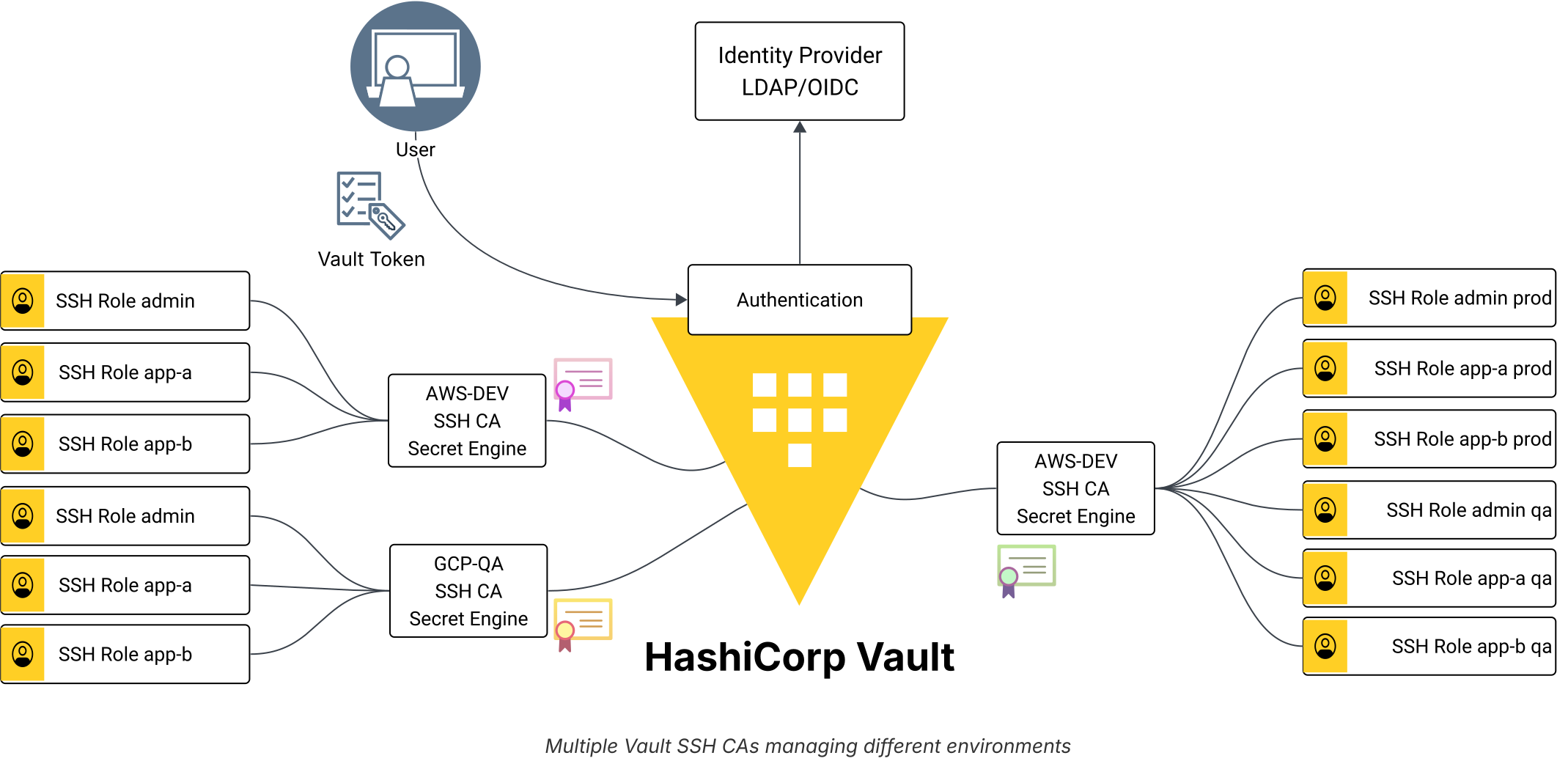
Multiple Vault SSH CAs managing different environments
»Vault with Boundary: Just-in-time SSH credentials
Note: This section provides a brief introduction to integrating Vault with Boundary for SSH access. For comprehensive setup instructions including Boundary installation, worker deployment, and advanced configurations, refer to the official Boundary documentation.
While the architecture above provides excellent security, users still need to manage SSH keys and certificates manually. HashiCorp Boundary extends this pattern by providing transparent, passwordless SSH access through credential injection.
»What is HashiCorp Boundary?
Boundary is HashiCorp’s modern privileged access management solution built for cloud environments. It uses identity-based controls to:
Authenticate users through trusted identity providers (Okta, Entra ID, etc.)
Authorize access based on roles and logical services
Connect users to dynamic infrastructure without exposing credentials
Record sessions for compliance and auditing
»The Vault + Boundary synergy
When integrated, Vault and Boundary provide a complete just-in-time (JIT) SSH access solution and help you manage SSH access at scale:
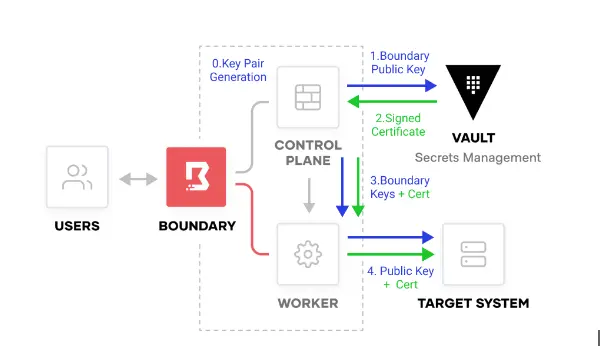
Credential injection workflow with Boundary and Vault
Two credential management approaches:

Boundary credential management approaches
»How it works
User authenticates to Boundary using their corporate identity (SSO)
User requests access to an SSH target
Boundary fetches credentials from Vault’s SSH secrets engine
For brokered credentials: Vault signs the user’s key and Boundary displays the certificate
For injected credentials (Enterprise): Boundary workers inject credentials directly into the session and users connect without ever seeing credentials
»Configure Vault as a credential store for Boundary
This section walks through connecting Boundary to Vault so that Boundary can dynamically fetch SSH certificates on behalf of users. The integration involves creating a credential store (the connection to Vault), credential libraries (which define how to request specific credentials), and attaching these to targets (the SSH hosts users will access).
»Understanding Boundary’s resource hierarchy
Before diving into the configuration, it helps to understand Boundary’s organizational model. Before diving into the configuration, it helps to understand Boundary's organisational model. Boundary applies access and configuration from the top down, so each layer builds on the one above it. The Organisation is your global administrative boundary, while a Project is where day-to-day SSH access is defined for a team or environment. Inside a project, a Credential Store links Boundary to Vault, Credential Libraries define exactly what dynamic SSH credential to request, and Targets represent the actual hosts users connect to. This hierarchy keeps policies clean and reusable: you define trust with Vault once, then attach the right credential flow to each target.
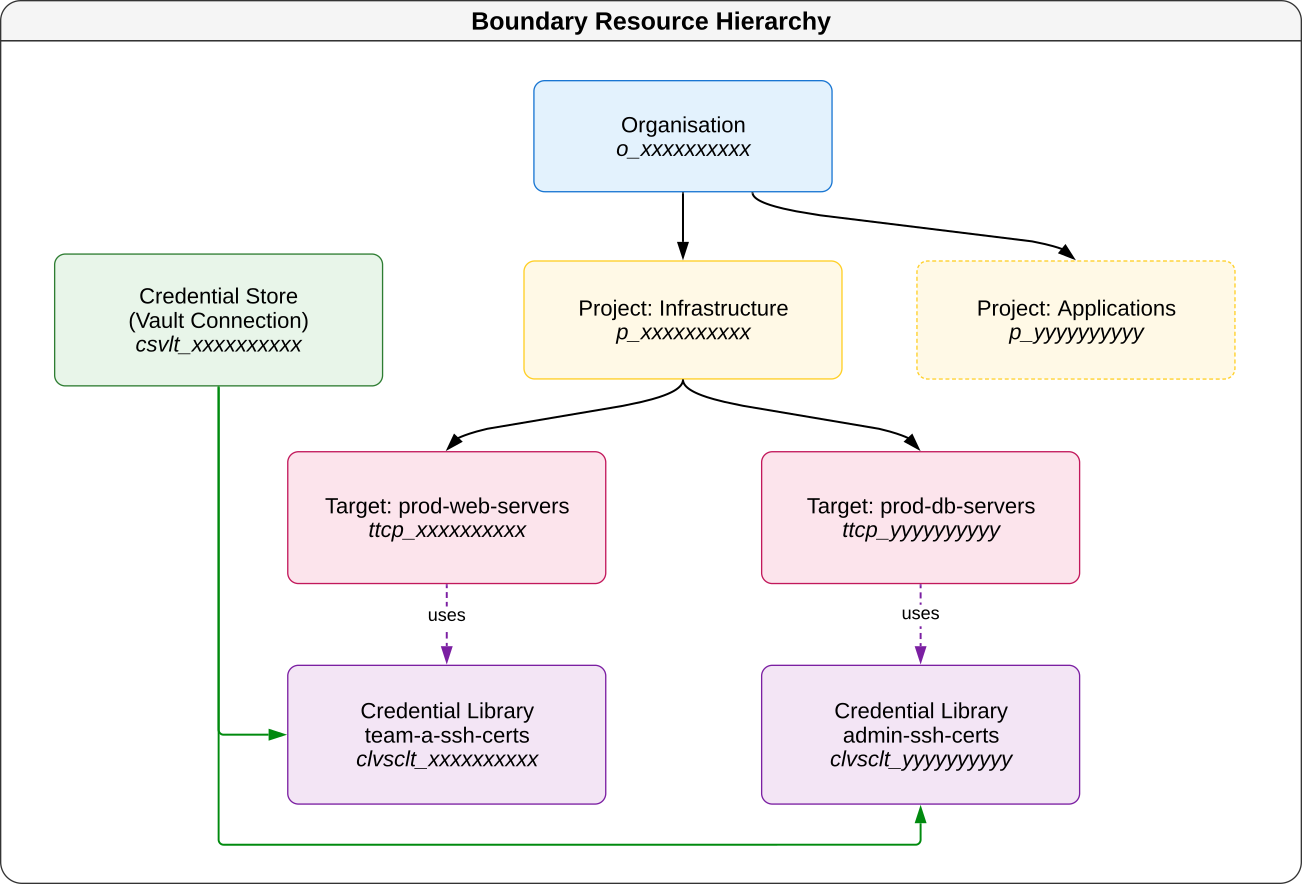
Boundary resource hierarchy
»Step 1: Create a Boundary-specific Vault policy
Boundary needs permission to interact with Vault on behalf of users. This policy grants Boundary the ability to manage its own token lifecycle and sign SSH certificates using the roles we created earlier.
vault policy write boundary-controller - << EOF

# Allow Boundary to manage its own token
# Required for token renewal and health checks
path "auth/token/lookup-self" {
  capabilities = ["read"]
}

path "auth/token/renew-self" {
  capabilities = ["update"]
}

path "auth/token/revoke-self" {
  capabilities = ["update"]
}

# Allow Boundary to sign SSH certificates using any role
# Adjust the path if you want to restrict to specific roles
path "ssh-client-signer/sign/*" {
  capabilities = ["create", "update"]
}

# Allow Boundary to issue SSH certificates (generates key + cert)
path "ssh-client-signer/issue/*" {
  capabilities = ["create", "update"]
}
EOF
Security note: For production, consider restricting
ssh-client-signer/sign/*to specific roles (e.g.,ssh-client-signer/sign/team-a-role) to follow the principle of least privilege.
»Step 2: Create a Vault token for Boundary
Generate a long-lived, renewable token that Boundary will use to authenticate to Vault. The -orphan flag ensures the token isn’t revoked if the parent token expires. The -period flag sets the renewal period.
vault token create \
  -policy=boundary-controller \
  -orphan \
  -period=72h \
  -renewable
Example output:
Key                  Value
---                  -----
token                hvs.CAESIG...truncated...
token_accessor       8xQs7kLM...
token_duration       72h
token_renewable      true
token_policies       ["boundary-controller" "default"]
Save the token value - you’ll need it in the next step.
»Step 3: Create a Vault credential store in Boundary
A credential store is Boundary’s connection to Vault. It tells Boundary where Vault is located and how to authenticate. You create this within a project (scope), which is why you need the scope-id.
# First, find your project's scope ID
boundary scopes list -recursive

# Create the credential store
boundary credential-stores create vault \
  -scope-id "p_xxxxxxxxxx" \
  -vault-address "https://vault.example.com:8200" \
  -vault-token "hvs.CAESIG...your-token-here..." \
  -name "vault-ssh-store" \
  -description "Vault credential store for SSH certificates"
Parameters:
-scope-id: The project ID where this credential store will be created. Find it withboundary scopes list.-vault-address: Your Vault server URL. Use HTTPS in production.-vault-token: The token created in Step 2.-name: A human-readable name for the credential store.
The command returns a credential store ID (e.g., csvlt_xxxxxxxxxx) — save this for the next step.
»Step 4: Create an SSH certificate credential library
A credential library defines how to request credentials from Vault. For SSH certificates, it specifies which Vault SSH role to use and the username to embed in the certificate.
Think of credential libraries as “templates” for credential requests. You might have different libraries for different teams or access levels:
# Create a credential library for Team A SSH access
boundary credential-libraries create vault-ssh-certificate \
  -credential-store-id "csvlt_xxxxxxxxxx" \
  -vault-path "ssh-client-signer/sign/team-a-role" \
  -username "appadmin" \
  -name "team-a-ssh-certs" \
  -description "SSH certificates for Team A with appadmin access"
Parameters:
-credential-store-id: The credential store ID from Step 3.-vault-path: The Vault API path to sign certificates. Maps to the SSH role we created earlier.-username: The Linux username to embed in the certificate (must match the host'sAuthorizedPrincipalsFile).-name: A descriptive name for this credential library.
You can create multiple credential libraries for different roles:
# Administrator access
boundary credential-libraries create vault-ssh-certificate \
  -credential-store-id "csvlt_xxxxxxxxxx" \
  -vault-path "ssh-client-signer/sign/administrator-role" \
  -username "admin" \
  -name "admin-ssh-certs"
The command returns a credential library ID (e.g., clvsclt_xxxxxxxxxx).
» Step 5: Create a target and attach credentials
A target represents an SSH host (or group of hosts) that users can connect to through Boundary. You attach credential libraries to targets to enable automatic credential injection.
# Create an SSH target
boundary targets create ssh \
  -scope-id "p_xxxxxxxxxx" \
  -name "prod-web-servers" \
  -description "Production web servers" \
  -default-port 22 \
  -address "web.prod.example.com"
Now attach the credential library to enable automatic SSH certificate injection:
# Attach credentials to the target
boundary targets add-credential-sources \
  -id "ttcp_xxxxxxxxxx" \
  -injected-application-credential-source "clvsclt_xxxxxxxxxx"
Parameters:
-id: The target ID (starts withttcp_).-injected-application-credential-source: The credential library ID. "Injected" means users never see the credentials.
Why attach credentials to targets? This binding determines which credentials Boundary fetches when a user connects. Different targets can use different credential libraries, enabling role-based access: Developers might get
team-aaccess to dev servers, while admins getadministratoraccess to production.
»Step 6: Connect to the target
With everything configured, users can now connect to SSH targets without managing keys or certificates manually.
Using the Boundary CLI:
# Authenticate to Boundary (uses your IdP via browser)
boundary authenticate

# Connect to the target - Boundary handles everything
boundary connect ssh -target-id ttcp_xxxxxxxxxx
Boundary will:
Authenticate you with your identity provider
Check if you’re authorized to access the target
Fetch an SSH certificate from Vault (via the credential library)
Inject the certificate into the SSH session
Connect you to the target host
Using the Boundary desktop app:
Open Boundary desktop and authenticate
Browse to your target in the interface
Click Connect. A terminal session will open automatically
Connecting via proxy (for use with your preferred SSH client):
# Start a local proxy session
boundary connect -target-id ttcp_xxxxxxxxxx -listen-port 2222

# In another terminal, use your SSH client
ssh -p 2222 localhost
This is useful when you need to use specific SSH options or integrate with tools like Ansible.
»Benefits of Vault + Boundary integration
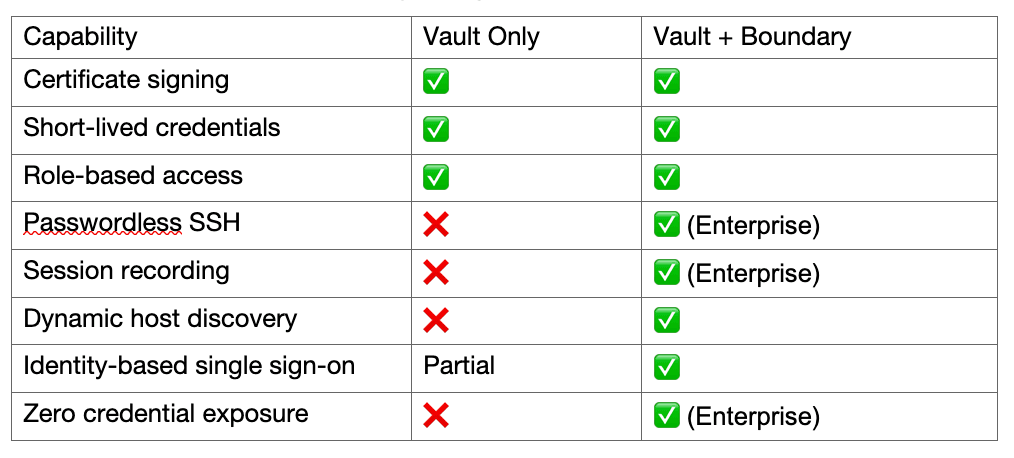
Vault + Boundary Benefits
»SSH session recording
Boundary Enterprise also provides session recording for SSH connections. All SSH sessions can be recorded and stored in an S3-compatible backend for:
Compliance auditing
Security incident investigation
User activity monitoring
This provides an additional layer of accountability beyond Vault’s audit logs.
»When to use each approach
Use Vault SSH CA alone when:
You have existing SSH workflows and tooling
Users are comfortable managing SSH keys
You need maximum flexibility in client configurations
Budget constraints limit Enterprise features
Add Boundary when:
You want passwordless SSH access
Session recording is required for compliance
You need to eliminate VPNs and bastion hosts
Dynamic infrastructure requires auto-discovery
Third-party contractors need temporary, audited access
»Conclusion
As you can see, managing SSH access at scale in hybrid and multi-cloud environments requires more than traditional key management tools. The architecture presented here provides:
Centralized control through Vault policies and roles
Short-lived credentials that automatically expire
Identity-based security with your existing identity provider
Consistent experience across any cloud or on-premises environment
Complete audit trail for compliance requirements
With the addition of HashiCorp Boundary, organizations can further enhance their SSH access management with:
Just-in-time credential injection, eliminating credential exposure
Passwordless user experience, reducing friction
Session recording, for compliance and forensics
Dynamic infrastructure support as environments scale
»Additional resources
We have covered a lot in this post, with detailed insights on how to effectively manage SSH access at scale using Vault and SSH certificates, and a high-level introduction to how Boundary can extend this by providing transparent, passwordless SSH access through credential injection. Managing SSH access across multiple environments with SSH key authentication is challenging, and many enterprises struggle as they scale while trying to manage SSH access to hundreds or thousands of hosts. For more information, here are a few resources: